
Inviting collaborators allows you to co-build your World with others in Summon Worlds. This section walks you through requirements, sending invites, managing requests, and removing collaborators.
✅ Prerequisites: What You Need Before Inviting #
Before you can invite others to collaborate:
- Make sure you’ve already created a World
If you haven’t created a World yet, learn how to create a World here. - You are the World Owner
Only the Owner can send collaboration invites. - The World is Published
You can only share published Worlds. Learn how to publish a World here if you don’t have it yet.
💡 Tip: After publishing your World, the Collaboration tab will appear in the World settings menu. - Invitees have a Summon Worlds account
Only registered users can be invited.
How to Invite a Collaborator #
Follow these steps to send a collaboration invite:
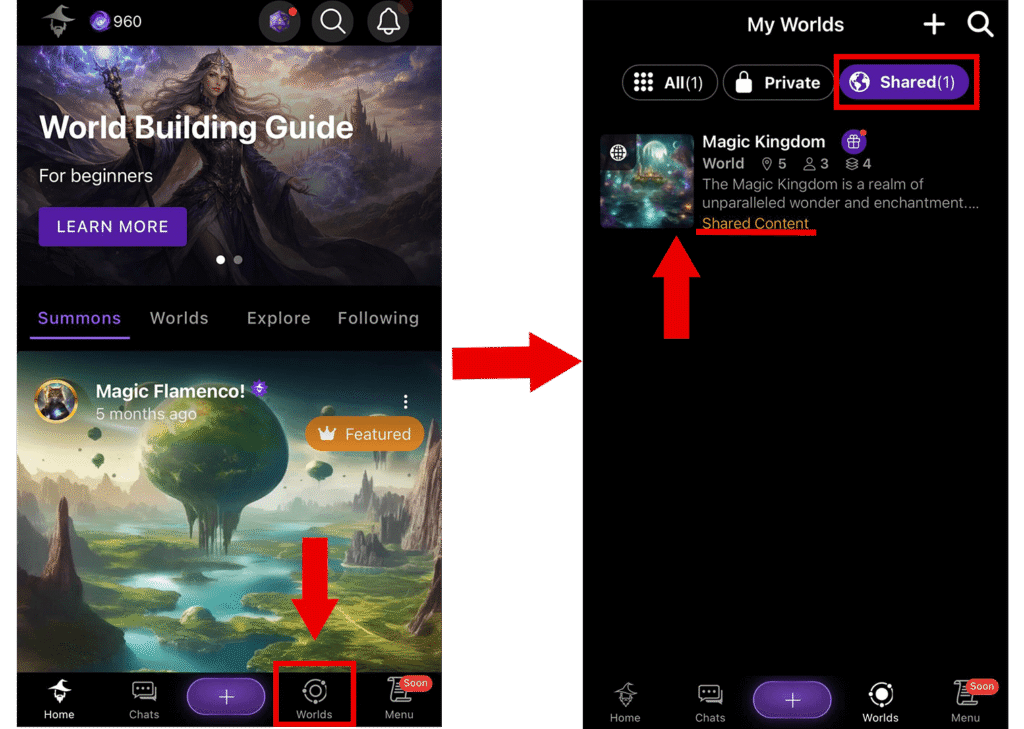
- From the Home page, open the World Menu
From the main navigation, tap on Worlds to open the World Menu. - Go to “Shared Worlds” and Select Your World
Tap on the Shared tab to view Worlds you own.
Then, select the published World you want to share.
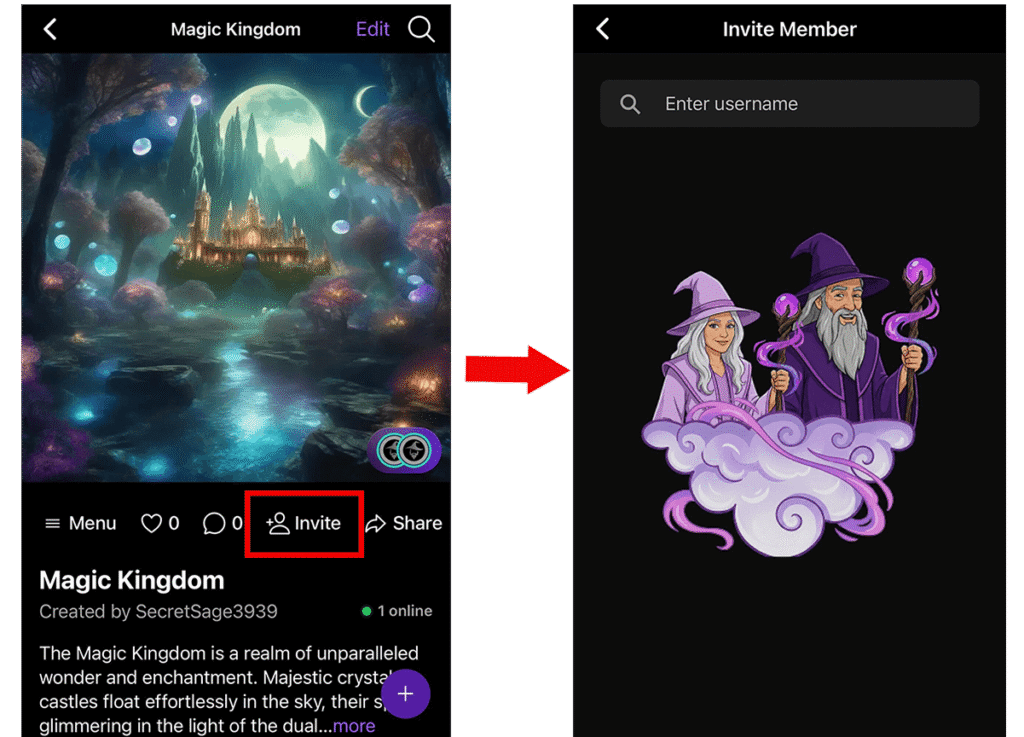
3. There are two ways to access the Invite Member screen in Summon Worlds:
3.1. Tap the “Invite” Button
Inside your selected World, look for the Invite icon.
3.1.1 Enter the Username
Use the search field to find the person you want to invite.
This is the fastest way to send an invite.
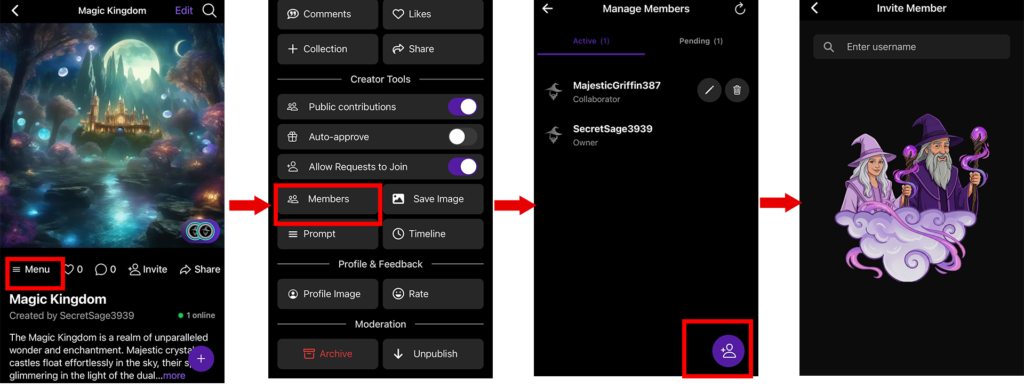
3.2. Use the Members Menu
3.2.1 From your World, tap the Menu button in the lower right corner.
3.2.2 Select Members to open the Manage Members panel.
3.2.3 Tap the Add Member icon (➕) in the lower-right corner.
🟡 Next:
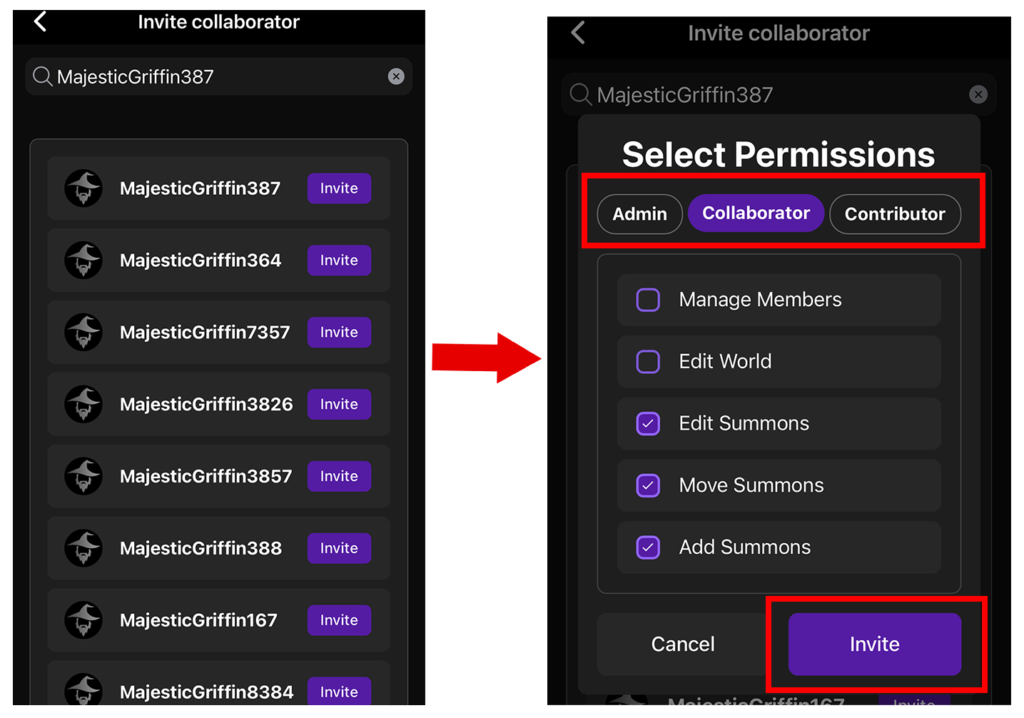
After entering the username, you’ll see a list of matching users.
Tap the Invite button next to the user you want to add.
4. Select Permissions
After selecting a user, choose what they’re allowed to do in your World, you can learn more about roles and permissions here.
5. Tap “Invite” to Send
Once permissions are set, tap Invite to send the request.
The user will receive a notification and can Accept or Decline.
📌 After You Send the Invite:
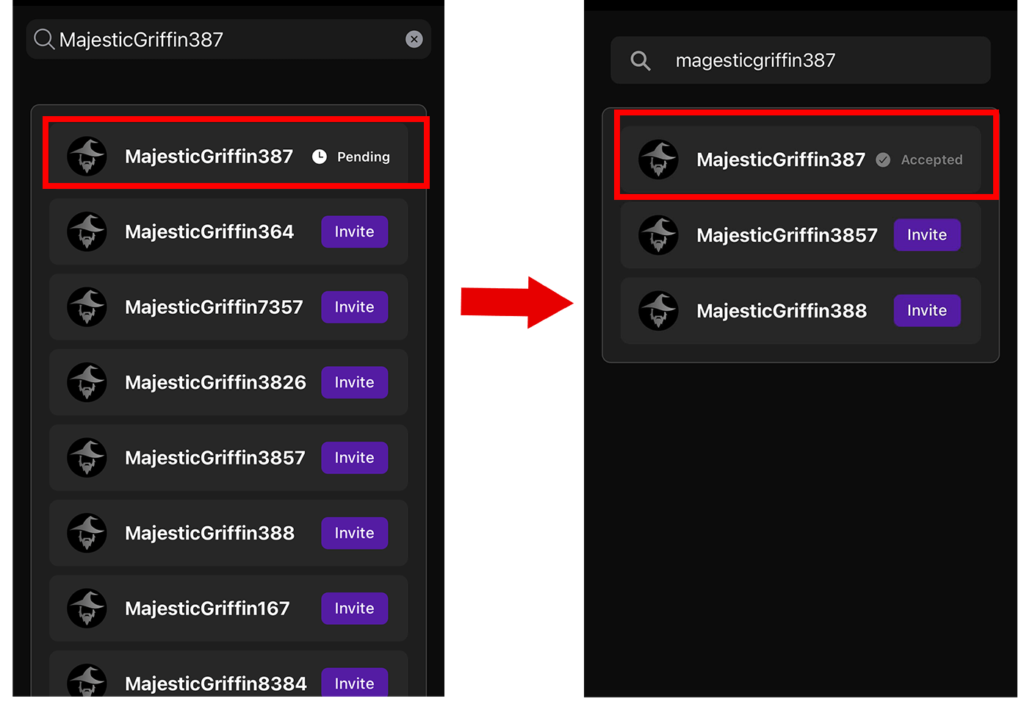
The same user list will reappear.
This time, the invited user will show Pending status next to their name until they respond.
✅ Once the User Accepts the Invite:
If you search for the same user again, you’ll now see Accepted next to their name.