

When you’ve been invited to a Shared World, your role defines how you can participate in a shared creative space.
Accepting an Invitation #
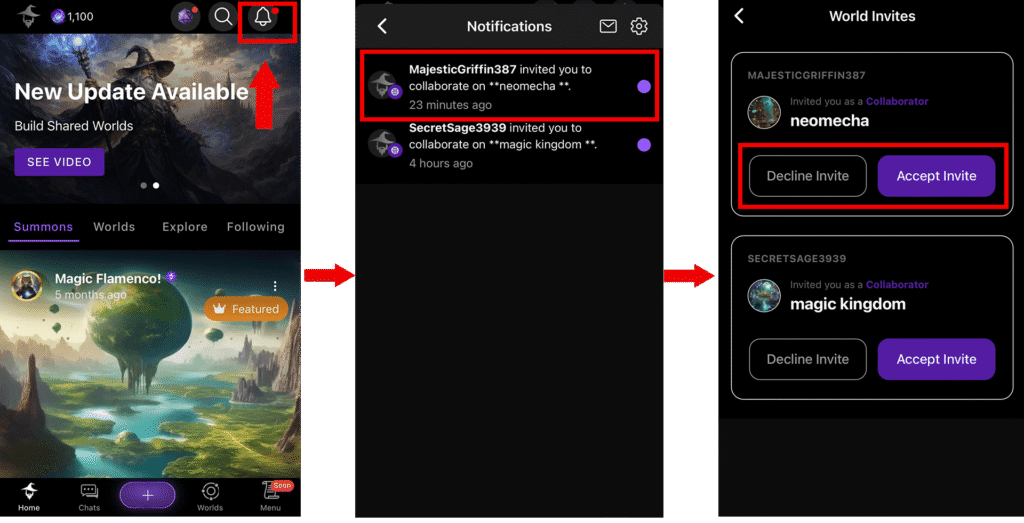
Step-by-step guide to accessing your invite:
- Tap the Notification Icon on the Home Screen
Look for the 🔔 bell icon in the top-right corner. - Find Your Invite
You’ll see a notification saying: “[Username] invited you to collaborate on [World Name]“. - Tap the Notification
The app will open the invite details. - Accept or Decline
Tap Accept to join the world, or Decline to ignore the invitation.
📝 Note: It may take a few seconds for the world to load after accepting. Once it does, you’ll be automatically redirected into the shared world.
🗺️ Explore the Shared World #
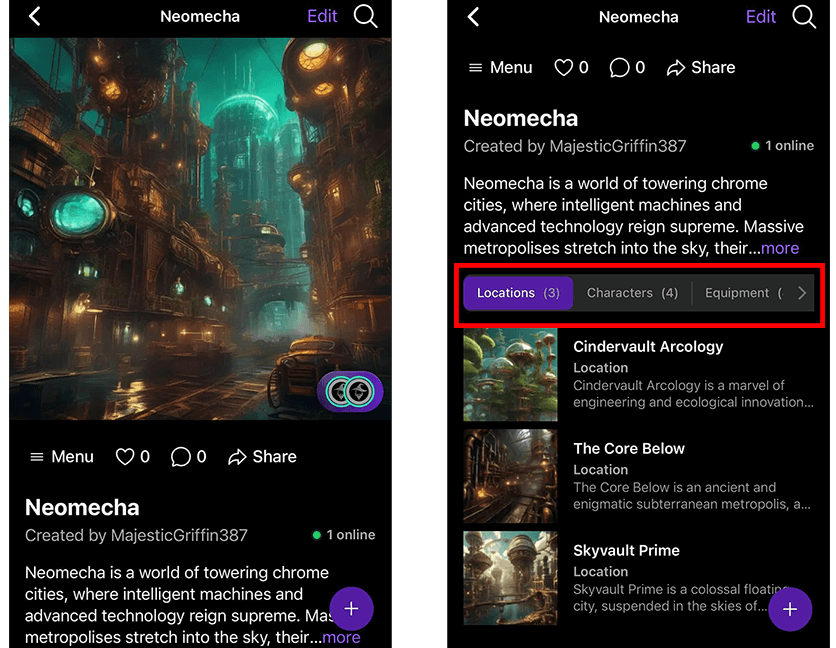
Once you accept the collaboration invite, you’ll be automatically redirected into the world you’ve joined as a member. Inside this shared creative space, you’ll be able to explore all the Summons bound to that world, including Locations, Characters, Avatars, Equipment, Items, and Spells created by the world’s owner.
Your visibility and editing permissions will depend on the role assigned to you, but all members can view the world’s structure and navigate through its immersive elements.
Navigating the World as a Member #
Once you join a Shared World, your experience and visible menu options will vary based on your role.
Here’s what to expect:
- 🔒 No Access to Members Panel
Members (Collaborators or Contributors) will not see the “Members” option in the World Menu. - 🛠️ No “Edit World” Option
You won’t be able to change the world’s name, cover, or description. - 🧙 Summon Creation Tools
You’ll have access to:- Create new Summons that will be automatically bound to the shared world where you’re working.
- Import existing Summons from your personal library, as long as those Summons are not already bound to another world.
🧭 Tip: Collaborators can freely build upon the world if granted permissions, while Contributors typically focus on adding content only.