

If you’re the World Owner, you have full control over collaborators and permissions. You can manage collaboration settings inside your Shared World, including editing roles, tracking invites, and removing members.
Access the Collaboration Settings #
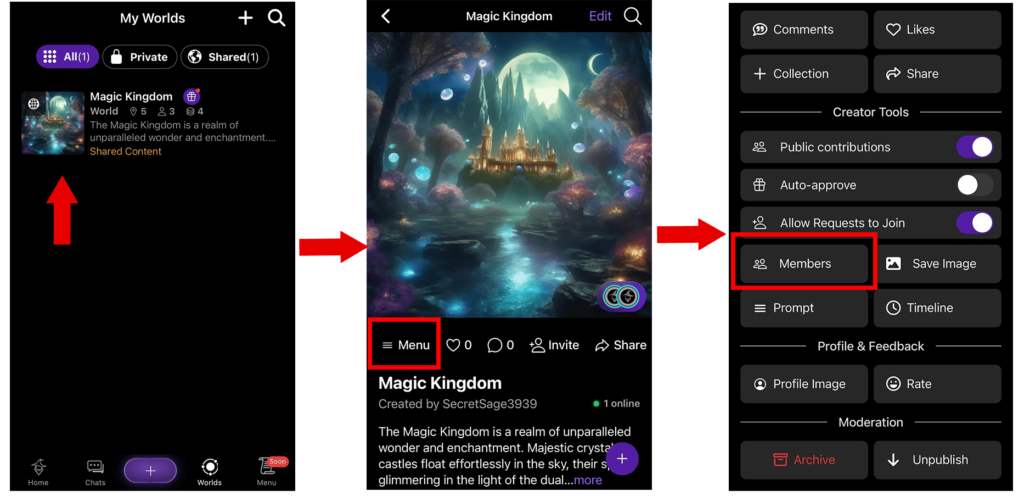
- Open Your World: Select the Shared World you want to manage.
- Tap the “Menu” Button: Inside your World, tap Menu in the lower left corner to open additional options.
- Select Members: Tap the Members button to view a full list of active collaborators and pending invitations.
💡Note: After you tap Members, you’ll see two tabs:
- Active: shows users who have accepted your invite
- Pending: shows users who haven’t yet responded.
Each entry displays the username, their assigned role, and icons to edit or remove collaborators.
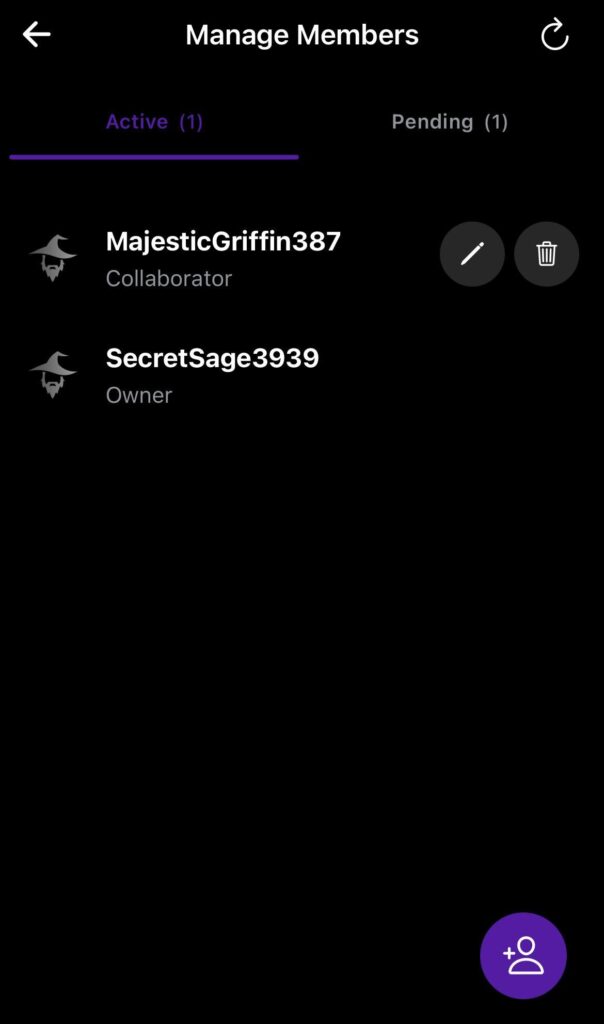
Once you’re in the Member settings, you can: Edit Roles and Permissions, Remove Active Members, Cancel Pending Invitations.
🔄 Edit Roles and Permissions #
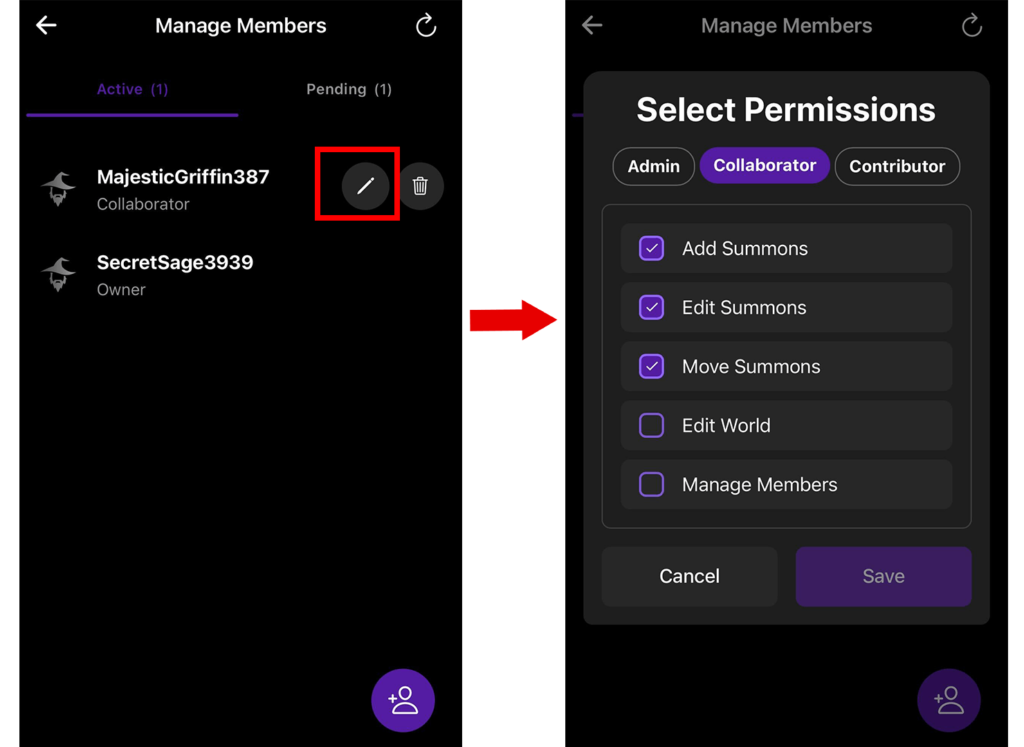
To change someone’s role or permissions:
- Tap the Edit icon next to the user’s name.
- Choose from available roles.
- Customize permissions manually.
🗑️ Remove Members #
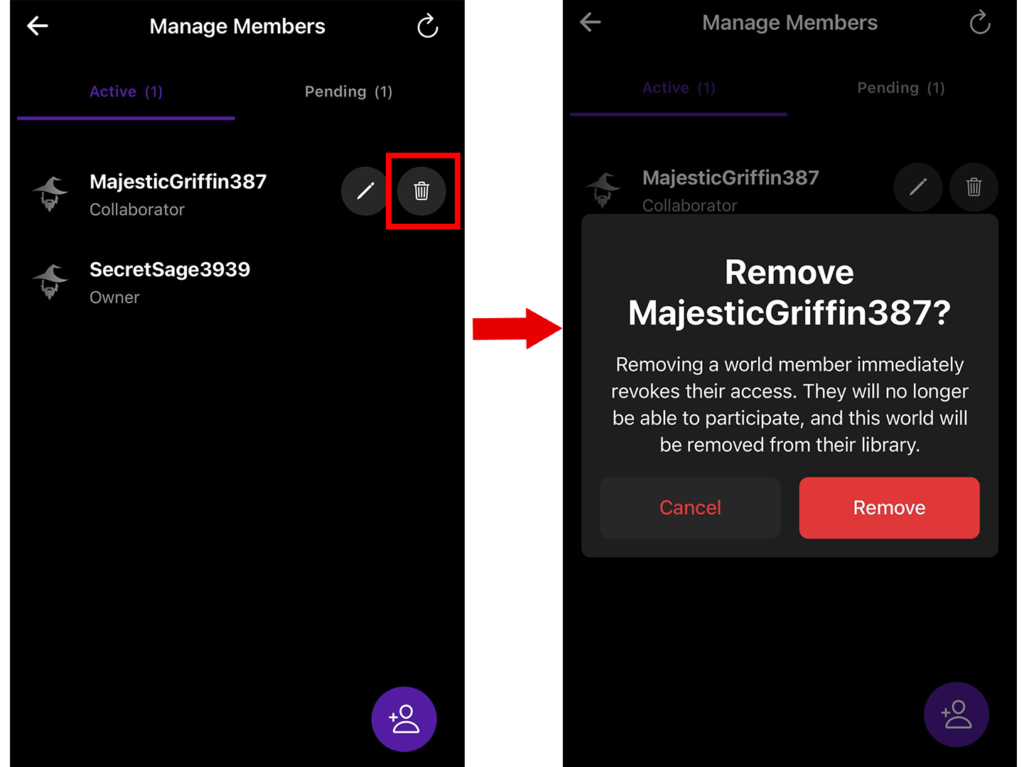
To revoke a collaborator’s access:
- Go to the Members list in your World
- Find the user you want to remove
- Tap the Delete icon next to their name
- Confirm removal to revoke their access and editing rights
📬 Track and Manage Invitations #
Once you’ve invited collaborators to your world, you can easily manage all invitations through the Manage Members panel.
What You Can Do with Pending Collaboration Invites:
- View invite status: Pending users appear with the role they were invited as.
- Cancel an invitation: Tap Delete icon to remove a pending invite and revoke access before it’s accepted.
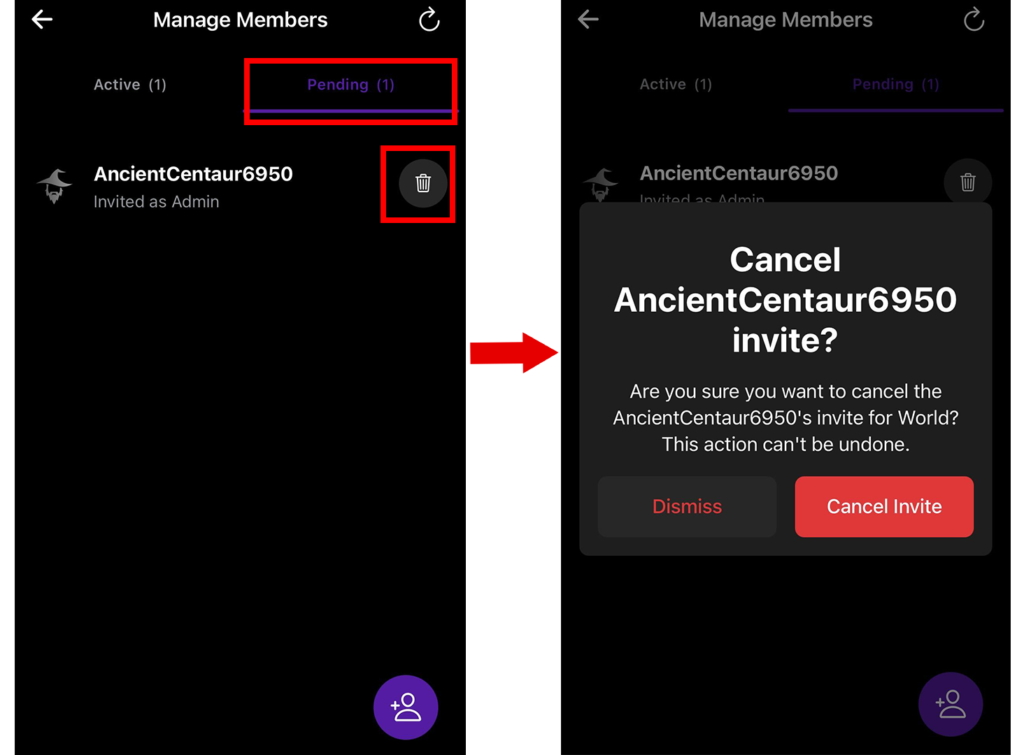
⚠️ Note: While an invite is still pending, you can’t edit the user’s role or permissions. The only option is to cancel the invite.
Once accepted, the member will move to the Active list, and you’ll be able to edit their role and permissions anytime.
📩 All invites appear in the invited user’s Notifications panel. Once accepted, their role will be shown in the Members list.